Οδηγός για πρακτορεία
Ως πρακτορείο κλείνεις δημιουργούς στο όνομα των πελατών σου. Αυτός ο οδηγός διατρέχει τη διαδρομή μία φορά: έγκριση, ένταξη πελατών, δημιουργία καμπάνιας, κράτηση, παράδοση αναφοράς και εκκαθάριση προμήθειας. Οι εικόνες προέρχονται από το σύστημα σε λειτουργία.
Αυτός ο οδηγός σε PDF1. Πώς γίνεσαι πρακτορείο
Ένα πρακτορείο έχει στο creatordeal δύο πλευρές: έναν λογαριασμό πωλητή στο πάνελ δημιουργού — από εκεί περνά η εκκαθάριση — και έναν λογαριασμό πελάτη στο κατάστημα, με τον οποίο κλείνεις για τους πελάτες σου. Τα δύο συνδέονται μία φορά και εγκρίνονται από τον διαχειριστή.
Βήμα 1.1
Τι επιτρέπεται σε ένα πρακτορείο σε εμάς
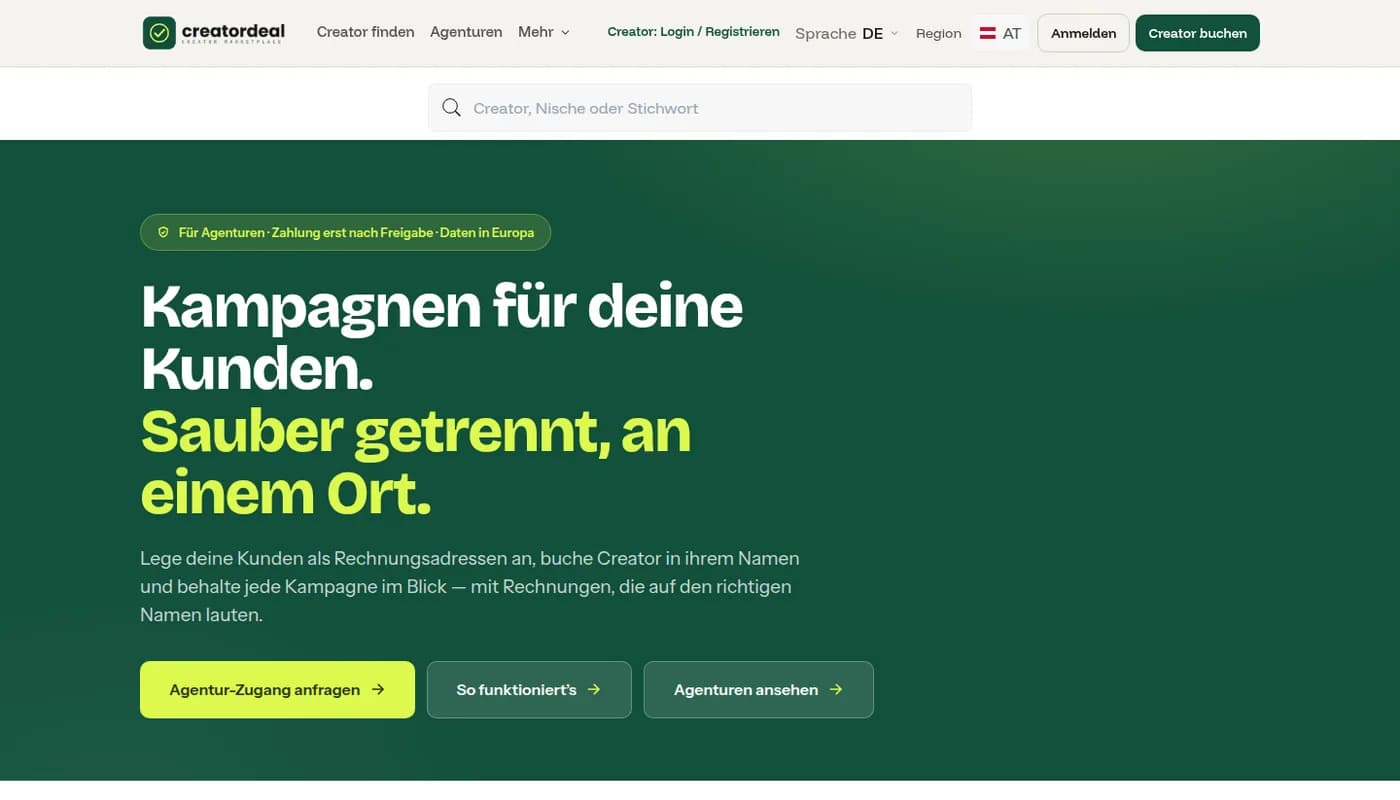
Η δημόσια σελίδα «Για πρακτορεία» εξηγεί το μοντέλο και οδηγεί στην εγγραφή. Κλείνεις εκεί όπου είναι ήδη οι πελάτες σου, κρατάς τα τιμολόγια χωριστά και λαμβάνεις μερίδιο από όσα κερδίζει το creatordeal στη διαμεσολαβημένη κράτηση.
Βήμα 1.2
Υποβολή αίτησης και έγκριση
Στον λογαριασμό πελάτη, στο «Γίνε πρακτορείο», καταχωρίζεις τη διεύθυνση email του λογαριασμού πωλητή σου και υποβάλλεις την αίτηση. Ο διαχειριστής την εξετάζει και ορίζει το μερίδιό σου. Έπειτα η ίδια σελίδα γράφει «Είσαι πρακτορείο» — και από κάτω εμφανίζονται οι πελάτες σου.
2. Διαχείριση πελατών
Ένας πελάτης εμφανίζεται στη λίστα σου μόλις σε εξουσιοδοτήσει — σε προσθέτει στον λογαριασμό του στο «Τα πρακτορεία μου» — ή μόλις δημιουργήσεις κράτηση για εκείνον. Την εξουσιοδότηση μπορεί να την ανακαλέσει οποτεδήποτε.
Βήμα 2.1
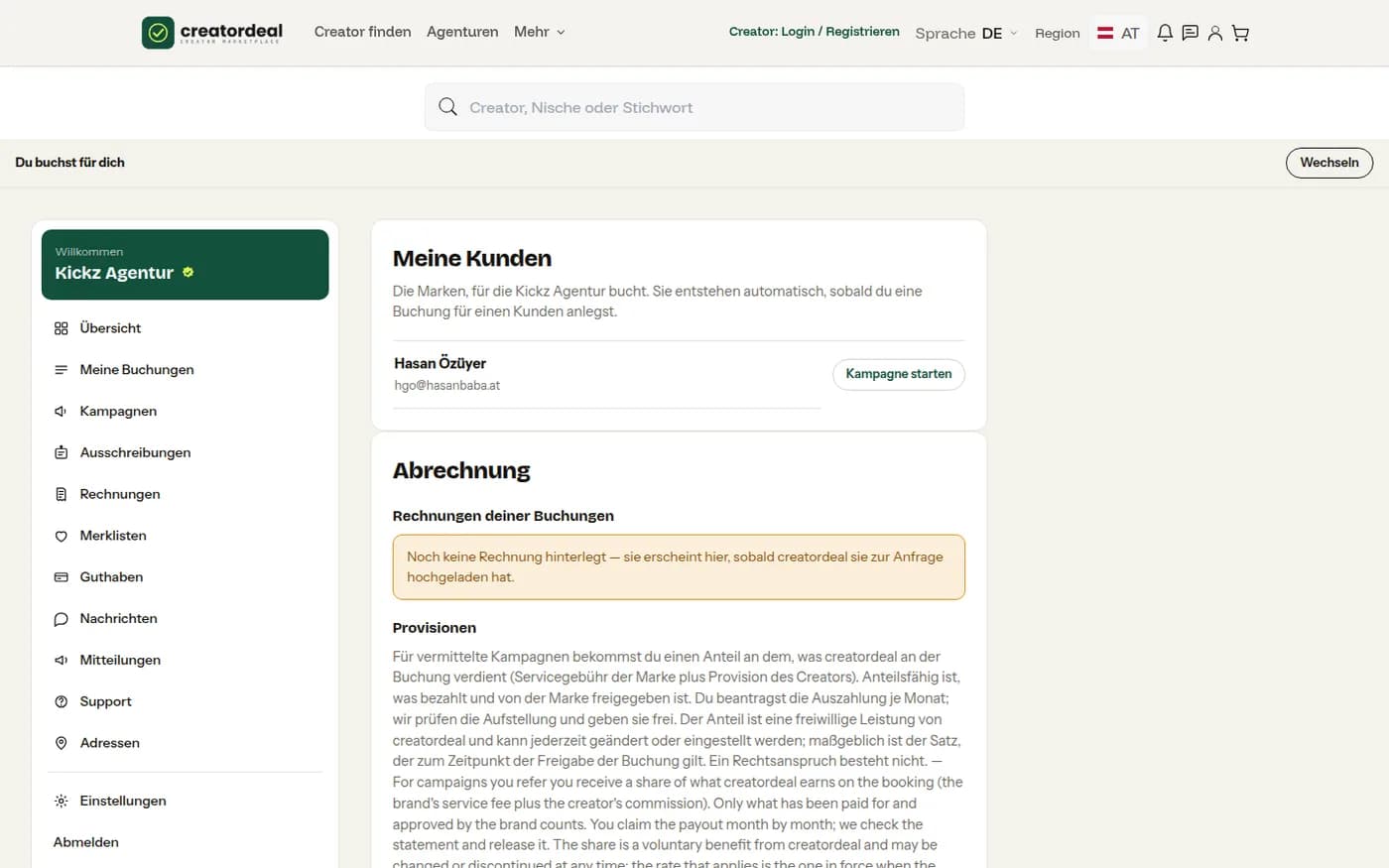
Η λίστα πελατών σου
Στο «Διαχείριση πελατών» βρίσκονται όλες οι μάρκες για τις οποίες μπορείς να κλείνεις, με τη διεύθυνση email τους. Κάθε γραμμή οδηγεί στις κρατήσεις αυτού του πελάτη.
Βήμα 2.2
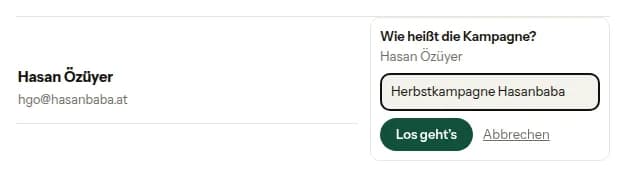
Έναρξη καμπάνιας για πελάτη
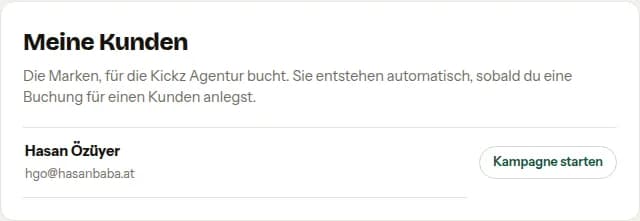
Πριν από την πρώτη κράτηση δίνεις στην καμπάνια ένα όνομα — π.χ. «Φθινοπωρινή καμπάνια». Ό,τι κλείνεις μετά κρέμεται σε αυτήν την καμπάνια· ο πελάτης βρίσκει αργότερα όλους τους δημιουργούς μιας καμπάνιας μαζί.
3. Κράτηση στο όνομα του πελάτη
Όσο τρέχει μια καμπάνια, κλείνεις για αυτόν τον πελάτη. Η μπάρα πάνω από κάθε σελίδα καταστήματος σου λέει ανά πάσα στιγμή για ποιον — ώστε τίποτα να μην καταλήξει κατά λάθος στον δικό σου λογαριασμό.
Βήμα 3.1
Η μπάρα δείχνει για ποιον κλείνεις
Πάνω γράφει είτε «Κλείνεις για σένα» είτε η τρέχουσα καμπάνια με τον πελάτη. Με το «Αλλαγή» πηδάς σε άλλον πελάτη ή πίσω σε σένα.

Βήμα 3.2
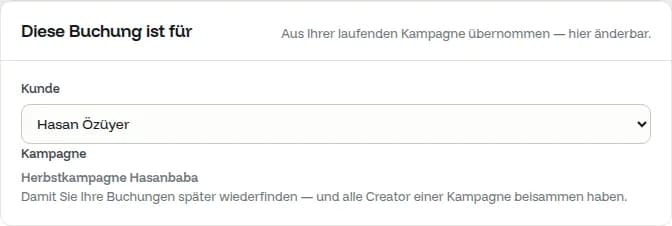
Στο ταμείο αναγράφεται ο πελάτης
Το μπλοκ «Αυτή η κράτηση είναι για» παίρνει πελάτη και καμπάνια από τη μπάρα — και εδώ μπορεί ακόμη να αλλάξει. Το τιμολόγιο πάει στη διεύθυνση που επιλέγεται από κάτω.
Βήμα 3.3
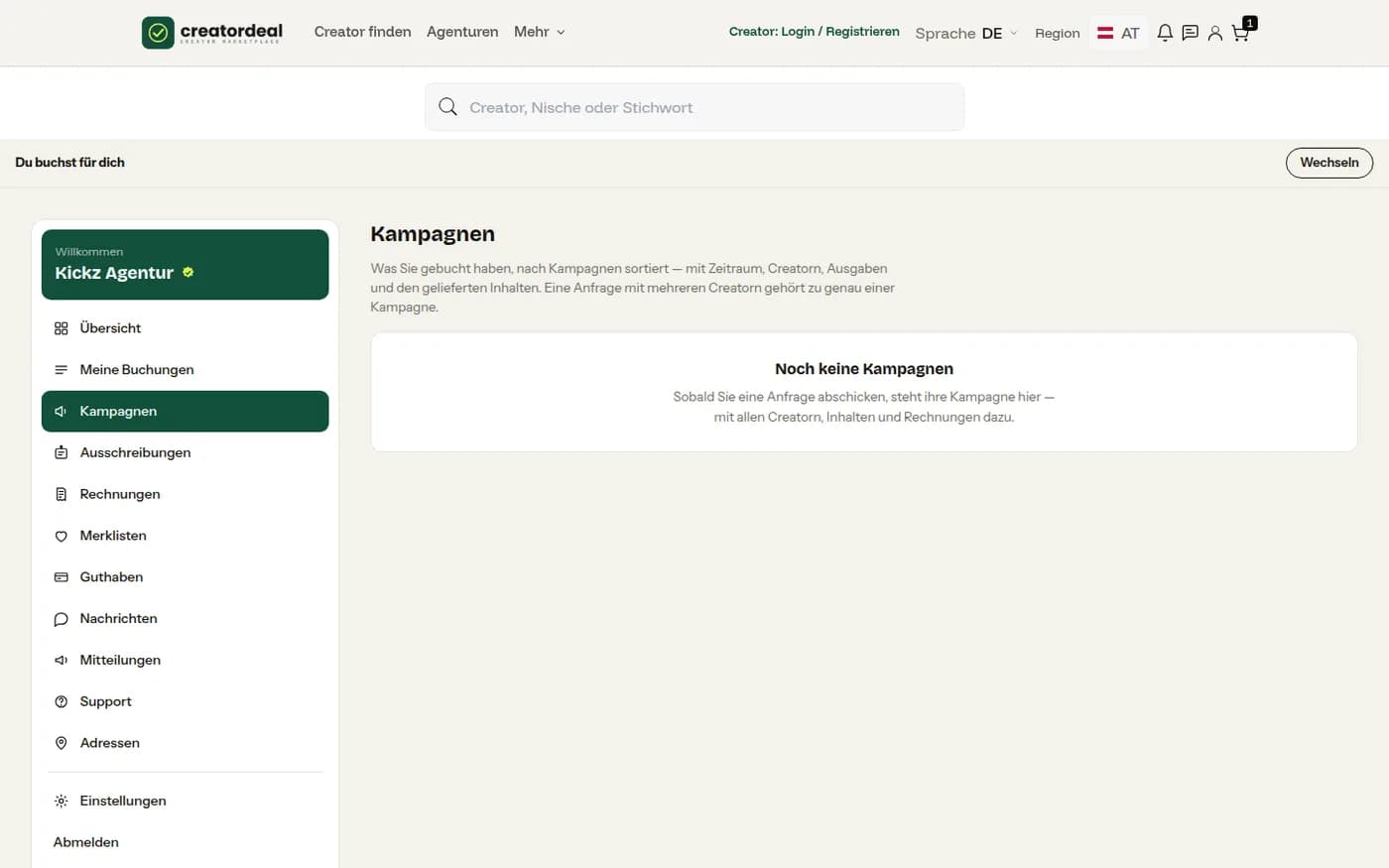
Καμπάνιες υπό έλεγχο
Στο «Καμπάνιες» βλέπεις ανά καμπάνια όλες τις κρατήσεις, την κατάστασή τους και τα παραστατικά. Από εδώ τα δικαιώματα χρήσης μπορούν να παραταθούν αργότερα χωρίς να ψάχνεις τη μεμονωμένη κράτηση.
4. Παράδοση της αναφοράς καμπάνιας
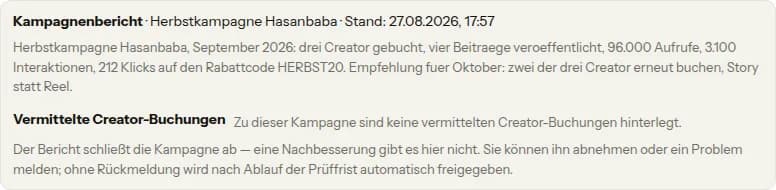
Τα πακέτα πρακτορείου δεν παραδίδουν σύνδεσμο ούτε αρχείο, αλλά αναφορά. Αυτή είναι η παράδοση: μόνο όταν ο πελάτης την αποδεχθεί — ή λήξει η προθεσμία ελέγχου — αποδεσμεύεται η αμοιβή σου.
Βήμα 4.1
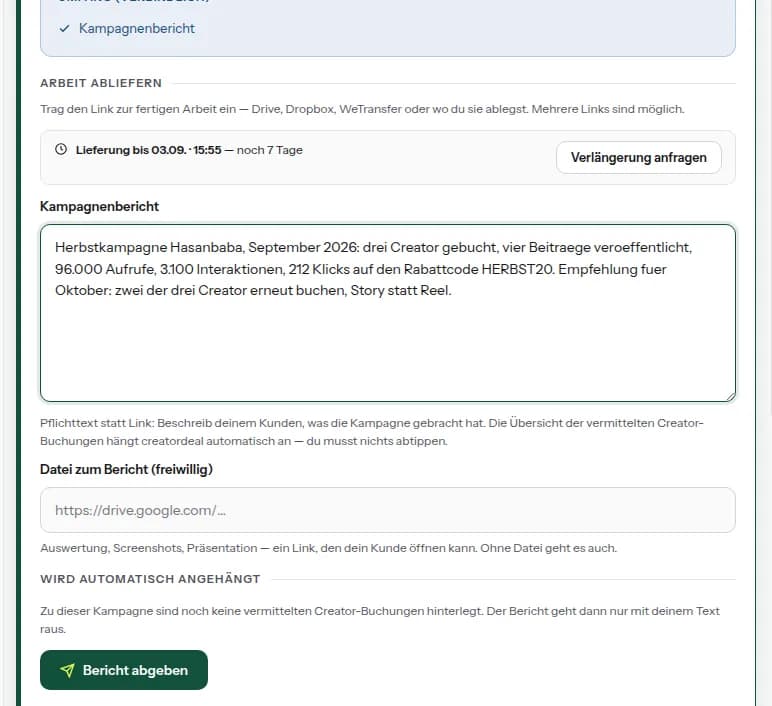
Σύνταξη αναφοράς
Στην παραγγελία, στη θέση του πεδίου παράδοσης βρίσκεται η αναφορά καμπάνιας: τι έτρεξε, τι απέδωσε, τι προτείνεις. Μπορείς να επισυνάψεις αρχείο — ανάλυση, στιγμιότυπα, παρουσίαση — αλλά δεν είναι υποχρεωτικό. Τη λίστα των διαμεσολαβημένων κρατήσεων δημιουργών την επισυνάπτει μόνο του το creatordeal.
Βήμα 4.2
Έτσι τη βλέπει ο πελάτης
Στον πελάτη, η αναφορά βρίσκεται στο αίτημά του, με ημερομηνία και τη λίστα των διαμεσολαβημένων κρατήσεων. Γύρος διόρθωσης δεν υπάρχει εδώ: ο πελάτης αποδέχεται ή δηλώνει πρόβλημα.
5. Εκκαθάριση προμηθειών
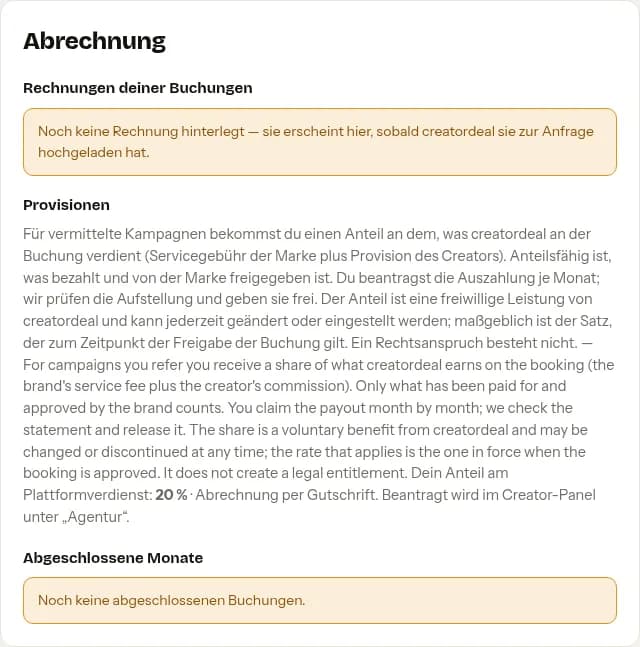
Για διαμεσολαβημένες καμπάνιες λαμβάνεις μερίδιο από όσα κερδίζει το creatordeal στην κράτηση — το τέλος υπηρεσίας της μάρκας και την προμήθεια του δημιουργού. Μετρά ό,τι έχει πληρωθεί και αποδεσμευθεί από τη μάρκα.
Βήμα 5.1
Επισκόπηση στον λογαριασμό πελάτη
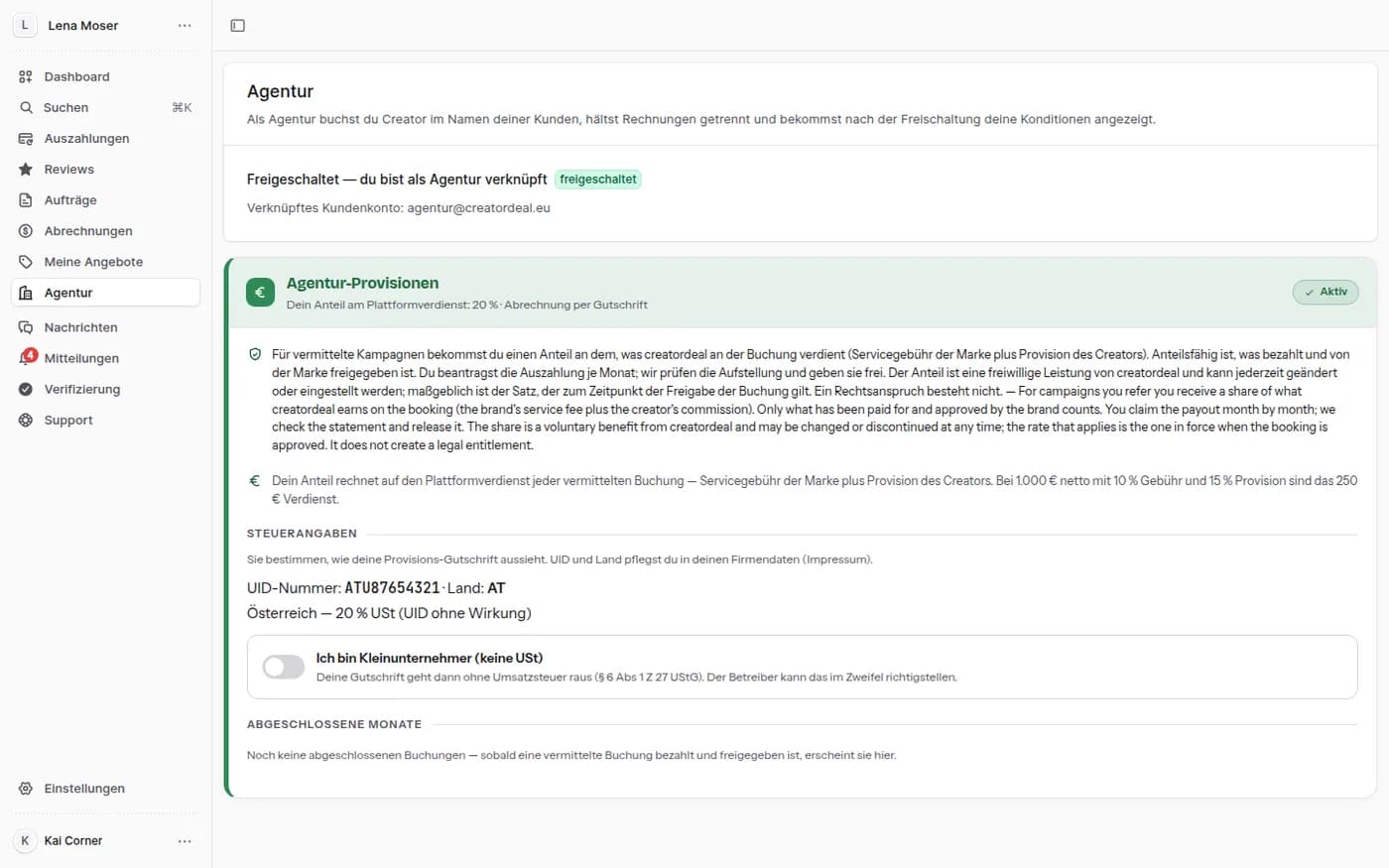
Στην περιοχή «Πρακτορείο» βλέπεις τον τρέχοντα μήνα, τους κλεισμένους μήνες και την κατάσταση των αιτήσεών σου — μαζί με το ποσοστό σου και τον συμφωνημένο δρόμο: πιστωτικό από εμάς ή τιμολόγιο από σένα.
Βήμα 5.2
Αίτηση στο πάνελ δημιουργού
Η αίτηση γίνεται στο πάνελ, στο «Πρακτορείο». Εκεί βρίσκονται και τα φορολογικά σου στοιχεία — ΑΦΜ, χώρα, διακόπτης μικρής επιχείρησης — που περνούν στο πιστωτικό. Μετά την αίτηση, ο διαχειριστής ελέγχει την κατάσταση και την αποδεσμεύει.